Stop ‘What’s the Status?’ Client Emails With a Clear Project Update
Stop what's the status client emails with a project update page that shows the latest work, who acts next, and when the client will hear from you.
By Notion Client Portal by Cosmo Suite · Editorial policy
Published · 9 min read

An illustrative client message: “What’s the status?” It arrives on Friday afternoon, while you are finishing a different project.
A current page and a clear update rhythm make routine status easier to find. Tell each client where to look and when you will refresh it. The page should answer four things: what changed, what is waiting, who acts next, and when you will check in again. It gives the client a useful reference. Urgent questions and decisions still need a direct reply.
In Brief
- Show the current stage, the next action and who owns it.
- Keep a predictable update rhythm that fits the project and the client's preference.
- Use a direct message for urgent decisions. A portal is not an alerting system.
Why Clients Ask for Project Status
Clients often ask for status because the next step is hard to find, the last update is old, or they need to make a decision. A new tool will not solve the problem if the client still has to guess which message or file is current.
Start with the client’s last few status questions. Sort them by what the client needed. Some call for a progress update. Others need an answer about a review, a file, a deadline or a choice. Keep each answer with the part of the project record where the client will use it.
For example, “Is the homepage ready?” may mean the client cannot see whether the draft is ready for review. “What do you need from me?” may mean there is a blocked task, but the owner and requested action are missing. “Are we still on schedule?” may need a direct conversation if a change affects the agreed delivery date.
Microsoft's project communication guidance recommends deciding who needs which information and how often, then adjusting the cadence to the people and project. Use that as a prompt to agree on a rhythm with the client. No single schedule suits every project. Microsoft's project communication guide also cautions that too little communication can leave people unsupported, while too much can feel like busywork.
If you need a place to gather the work around those updates, a client portal template with tasks and feedback pages gives you a checklist of what the client may need to find. The page still needs a clear owner and a current status.
“What’s the Status?” Update Side by Side
A status page works when it replaces scattered references with a maintained summary and a clear next action.
| Client question | Scattered update pattern | Useful project-page answer |
|---|---|---|
| What changed? | Search email or chat for the newest message | Current stage and the latest completed item |
| Is anything waiting on me? | Infer it from a request sent earlier | The requested decision or file, named owner and due date if agreed |
| What happens next? | Ask again after a meeting | The next task, who owns it and its current state |
| When will I hear from you? | Assume another message will arrive | A next update or review date that you can meet |
| Where do I leave feedback? | Reply in the thread that happens to be open | A named feedback page or a direct message route |
Email and a shared page serve different purposes. Email works for a personal update, a sensitive discussion or a decision that needs attention now. A shared page helps when the client needs to return to the same project details over time.
What the Client Sees
The client should be able to scan the page and identify the current state and their next action without opening internal notes.
In Notion, a page is a document that can hold project details and links. A guest is someone outside your workspace whom you invite to a page. A public link works differently: anyone who receives it can view the page, while comments and edits require a sign-in.
Use a compact status block near the top of the page. Keep it to the active work, not every internal task your team tracks. A practical example for a small studio might look like this:
| Status area | Example content |
|---|---|
| Current stage | First review |
| Done | Initial copy and page layout are ready |
| Waiting on client | Choose one of the two headline directions |
| Next studio action | Apply the selected direction to the remaining pages |
| Next check-in | After the client sends the selection, or on the agreed review date |
This example is illustrative. It is not a record from a real client project. The useful detail is the relationship between the status, its owner and its next action. “In progress” alone does not tell a client whether they need to do anything.
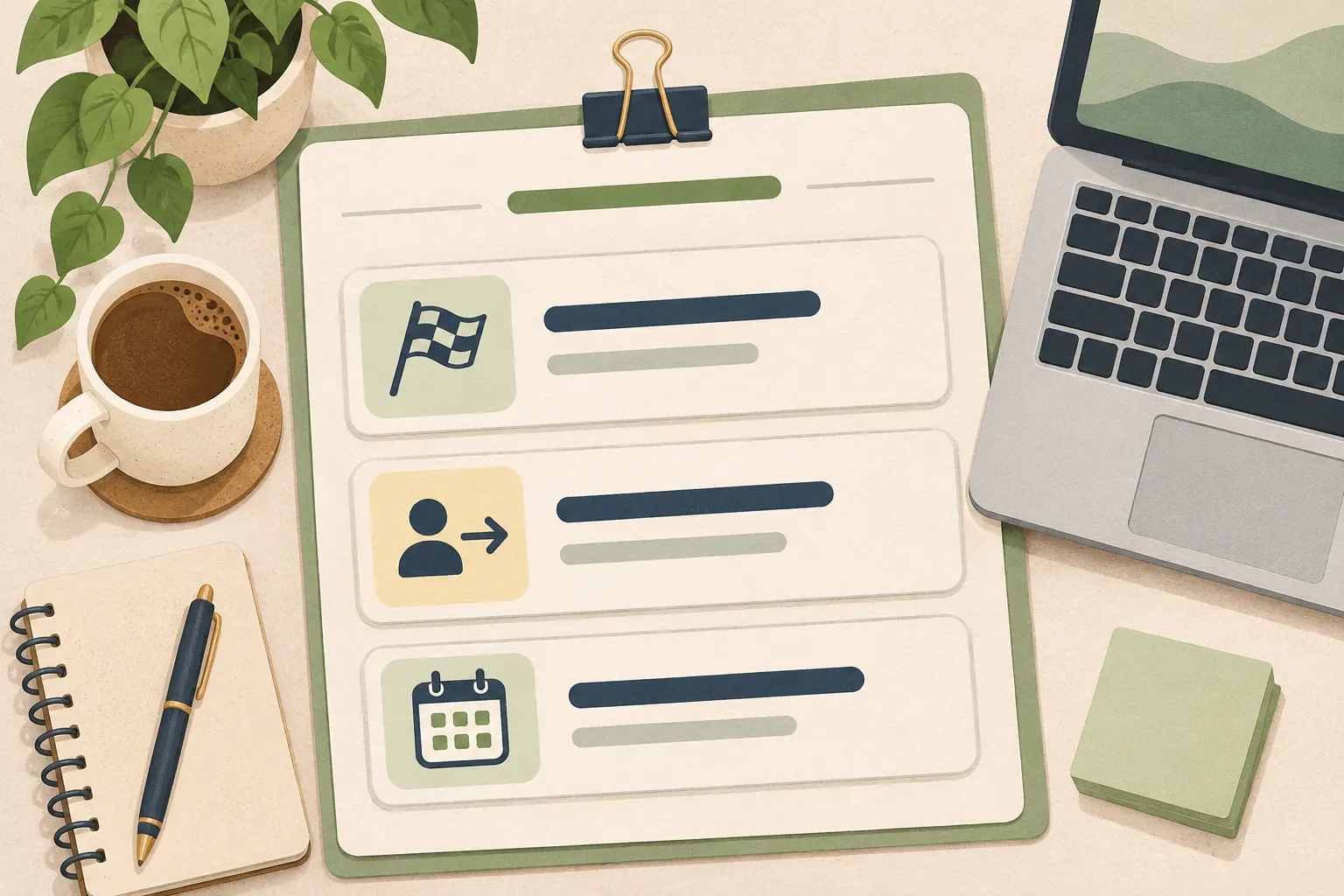
Put the route for feedback beside the request. If the client should comment on a draft, link to that draft or the agreed Feedback page. If they should send a file, say where it belongs. Avoid adding a second place to check unless it serves a clear purpose.
If the project includes a portal and onboarding pages, a questionnaire can help collect the decision maker, contact route and materials before work begins. Keep new information connected to the task it affects.
For a studio that wants those pages in one repeatable layout, a Notion template for client status, tasks and feedback gives you a structure to adapt before sharing it.
Give Each Status a Useful Meaning
Use status labels that tell the client what is happening and what, if anything, they should do.
“In progress” is a broad label. It can hide whether the studio is actively working, waiting for a file, or waiting for the client's approval. Add a short description when the label alone does not answer that question.
| Status | What it tells the client | Add this detail |
|---|---|---|
| In progress | The studio owns the current action | The next visible milestone |
| Waiting on client | The project needs an input or decision | The exact request and where to respond |
| Waiting on studio | The client has completed the requested action | Who owns the next step and what happens next |
| Ready for review | A deliverable needs the client's attention | Review instructions and the agreed response date |
| Complete | The agreed work is finished | Where to find the final file or handoff details |
Keep the list short enough that a client can understand it without learning your internal project vocabulary. If a status has no next action, either add the action or choose a clearer label.
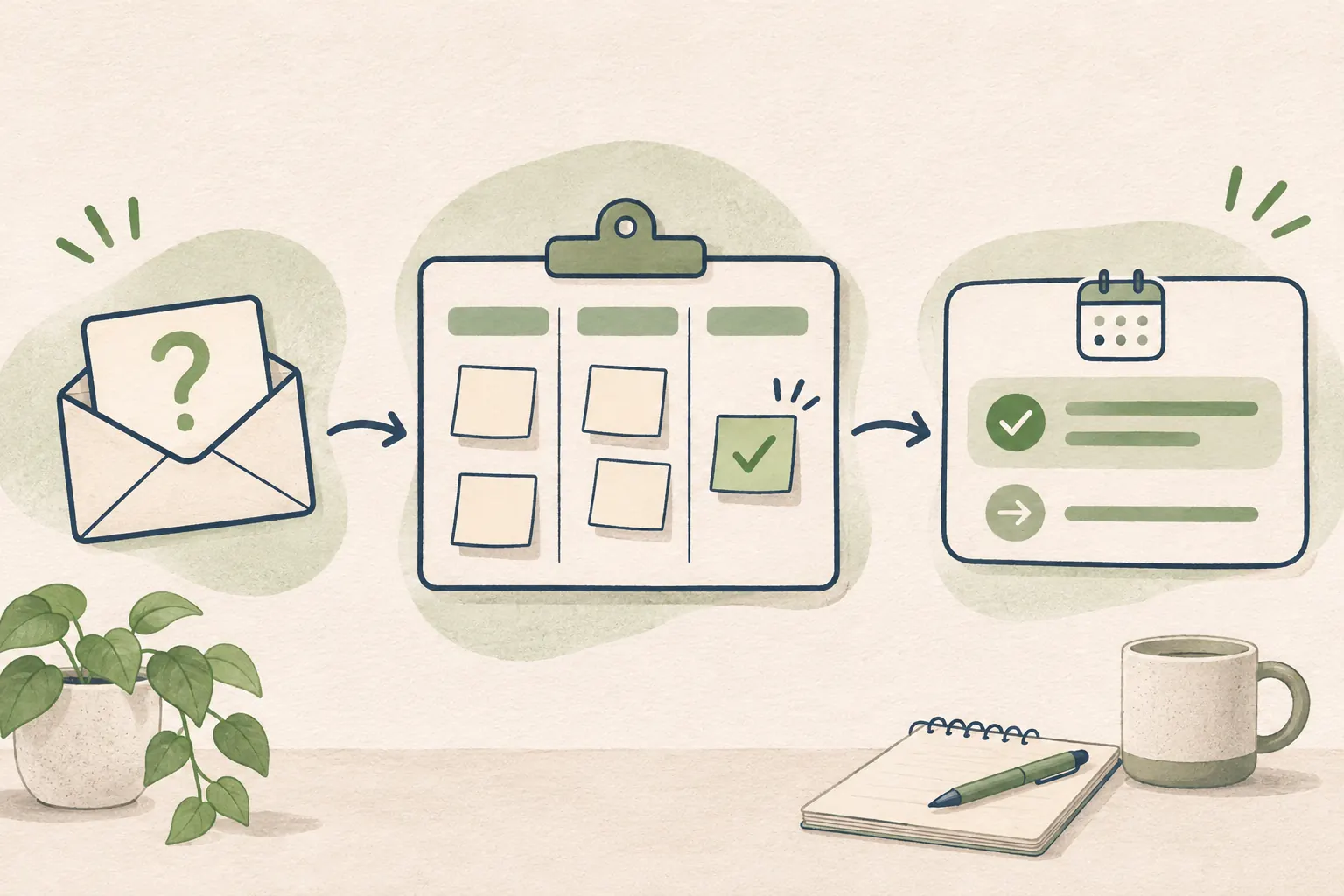
For each open item, record the owner and the action. A request like “feedback needed” leaves room for interpretation. “Select the preferred headline in Feedback” gives the client a place to act. If there is a deadline, use the date agreed with the client rather than a date inferred from your own schedule.
Set an Update Rhythm You Can Keep
Agree on when the client should expect updates, and make the page match that promise.
Some projects need a weekly note because the work changes often. Others have long stretches between milestones. Ask the client what they need to feel informed, then choose a cadence the studio can maintain. Microsoft also recommends tailoring communication frequency to the project and its stakeholders rather than forcing one schedule on every project.
Notion's notification guide explains how page and database updates appear in the inbox and how people can choose which updates to receive. These controls can help a collaborator notice activity, but they do not promise that every client will see a change or reply by a deadline.
Write down the expectation at kickoff. For example: “I’ll update the project page every Thursday. If I need a decision before then, I’ll contact you directly.” This is an illustrative script. Adapt it to the actual service and the channel the client prefers.
Keep an update short and specific:
- What changed: identify the completed work or new information.
- What is waiting: say whether the studio or client owns the next action.
- What happens next: name the next step and its owner.
- When to check again: give the next update or review date if one is agreed.
Do not send an empty “still working on it” update just to satisfy a schedule. If nothing changed, say that briefly and identify the next checkpoint. If the date has moved, tell the client why and ask what decision is needed to reset the plan.
Record Approvals and Blockers Where the Work Lives
Keep each approval attached to the deliverable it approves, with the approver and date visible.
When feedback arrives in email, chat or a call, summarize the decision in the agreed project record and send the client a link to that record. Keep their original wording when interpretation could change the work. If a decision changes the scope or delivery date, discuss the change directly before updating the task.

An approval note can identify the deliverable, version, decision, approver and date. A simple entry might say that the client approved the second copy direction on the date agreed in the project. The note records the decision; it is not an electronic signature. Notion pages do not replace contract or signature services.
Use direct contact when a blocker needs an immediate answer, when the client has not seen the page, or when the issue involves money, scope or a relationship concern. A status page should make routine progress easier to find. It should not be used to avoid a conversation.
Check the Link Before You Send It
Test the exact client view and permission level before you share project information.
Notion has both invited guest access and public-link access. Notion's sharing and permissions guide says an invited guest needs a Notion account. Anyone with an “Anyone on the web with link” page can view it without an account, while commenting or editing requires sign-in. A public link can be forwarded, so use it only for content that is suitable for anyone who receives it.
Check the page as the client will use it:
- Open the share menu and confirm who has access and at what permission level.
- Check subpages and linked files separately. Do not assume a parent page's name guarantees privacy.
- Ask a colleague or a test guest to check what the client can read and do.
- Confirm that the client can reach the feedback or file route you named.
- Keep private studio notes outside the shared client view.
The page should support the workflow you promised. A client with view access may be able to read the update but not comment. A client invited as a guest needs an account. A public page is available to anyone with its link, so it is not a safe workaround for guest limits or account friction.
Why Trust This Article
Notion Client Portal by Cosmo Suite publishes this guide and sells the template discussed below. Read about the team and the editorial policy for information about the publisher and review process.
The project-page example is illustrative. It is not a customer case study or a measured reduction in email. Platform details were checked against Notion's help pages on 3 November 2026. The cadence advice is adapted from Microsoft's project communication guidance and should be adjusted to each client and engagement.
Where Notion Client Portal Fits
Notion Client Portal can give a small studio a repeatable place for project status, tasks, files and feedback links.
The template includes client-facing pages for Task, Workspace, Meeting and Feedback, among other sections. You can start from a ready-made client portal structure and remove pages that do not fit the project. A structure saves setup decisions; it does not keep the status current or notify a client when you make a change.
Use the standalone client portal when you want a shareable project page and can manage its access. Keep payment processing, electronic signatures and automated reminders in services designed for those actions. For a broader walkthrough of the pages and access checks, see how to set up a Notion client portal.
The next status update can be one concise message: the current state, the person who acts next and when you will return. Make sure that answer is on the page before you send the client there.
Frequently asked questions
How do I stop clients from asking for project updates?
Agree on an update rhythm. Keep one current page with the status, next action and review date, then show the client where to find it. Maintain the page, and reply directly when a question is urgent.
What should a client project status update include?
List what changed, what is waiting, the owner of the next action, the next update or review date, and any decision the client needs to make. Keep each item within the agreed scope.
How often should I send a project status update?
Set the rhythm with the client and match it to the work. Active projects may need a weekly update; quieter work may need one at each milestone. Ask the client which cadence they prefer.
Can I use Notion as a client status page?
A Notion page can hold project status, tasks, files and feedback links. Someone still needs to maintain the page and set its access. Notion does not automatically send client updates for you.
Do clients need a Notion account to see a project update?
An invited guest needs a Notion account. A person with an “Anyone on the web with link” URL can view without an account. Commenting and editing require sign-in. Only use a public link for information you are comfortable sharing with anyone who receives it.
