Notion Client Portal Permissions: What Clients Can See
Notion client portal permissions depend on page access, guests, and shared links. Compare the options and check what each client can see before sharing.
By Notion Client Portal by Cosmo Suite · Editorial policy
Published · 9 min read

Illustrative client message: “Can you put all six projects in one tracker so I can see mine?” One database might be convenient for the studio. The permission setup decides whether that convenience works for clients.
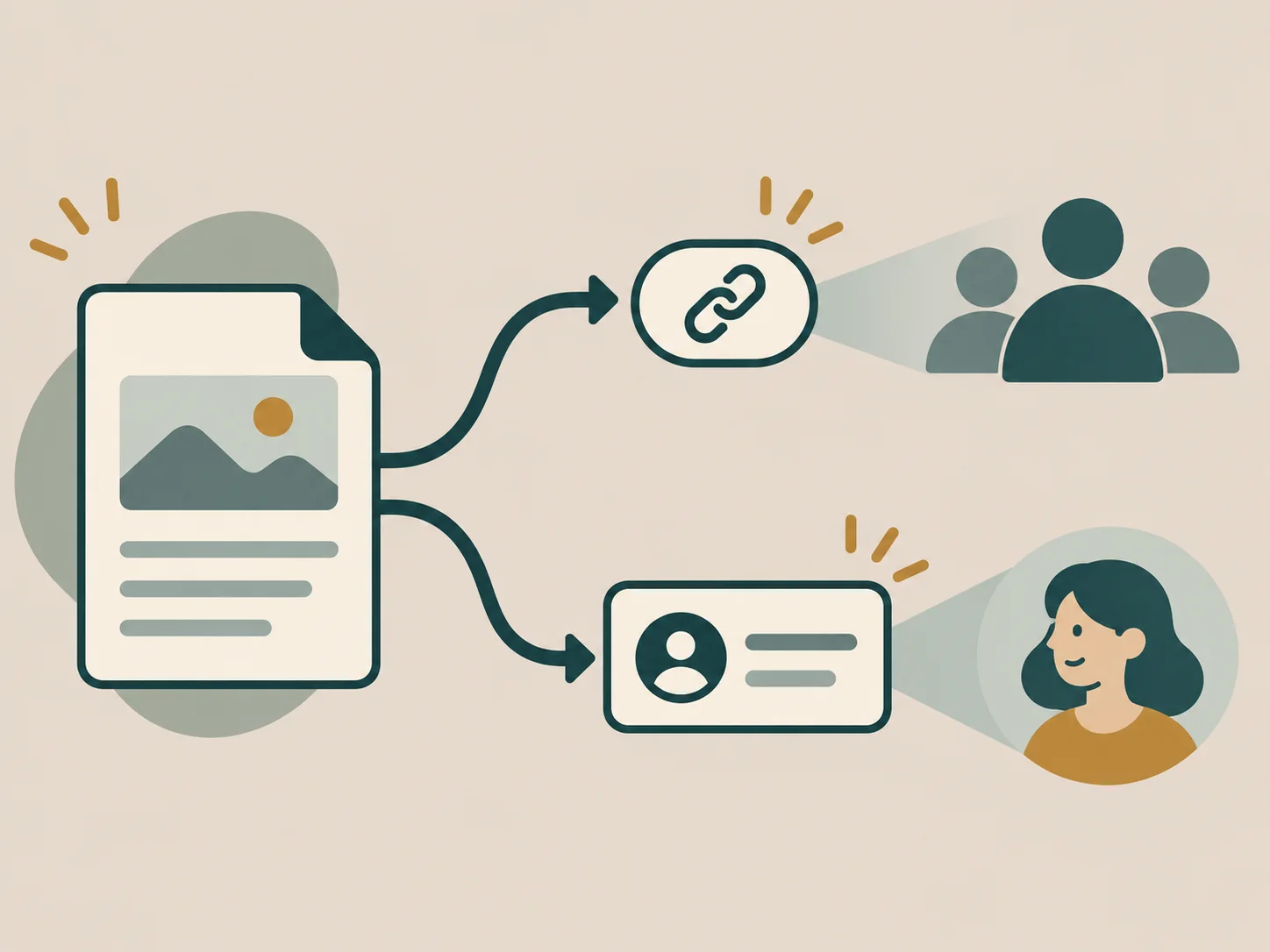
Notion client portal permissions come from the pages you share, the people or groups you invite, and the access level you assign. A database filter is a display choice. It does not automatically make each row private. Before sharing a client portal, decide whether the person needs public view access, a private guest invitation, or access to a database page under Notion's paid page-level controls.
In Brief
- Use a public link only for material safe for anyone holding the URL to view.
- Invite a named guest for private collaboration; the guest needs a Notion account.
- Treat a filtered database view as a convenience, not a privacy control.
- Test the client link and inspect subpages before sending it.
Choose Notion Access by Client and Page
Choose a sharing method based on who should see a page and what they need to do with it. Notion gives page owners several access routes, but the client portal's structure does not decide access for you.
| Route | Who can open it | Client account | What to check |
|---|---|---|---|
| Anyone on the web with the link | Anyone who has the URL | Not needed to view; needed to comment or edit | Link forwarding, public content, subpages and indexing |
| Guest invitation | The invited person, subject to page and workspace settings | Required | Correct email, parent access, guest limits and the pages shared |
| Shared with workspace members or groups | People in the selected workspace or group | They must be workspace members | Teamspace defaults and inherited access |
| Database page-level access | People who match the configured rules for database pages | Notion account and eligible plan | Business or Enterprise availability, rules and exceptions |
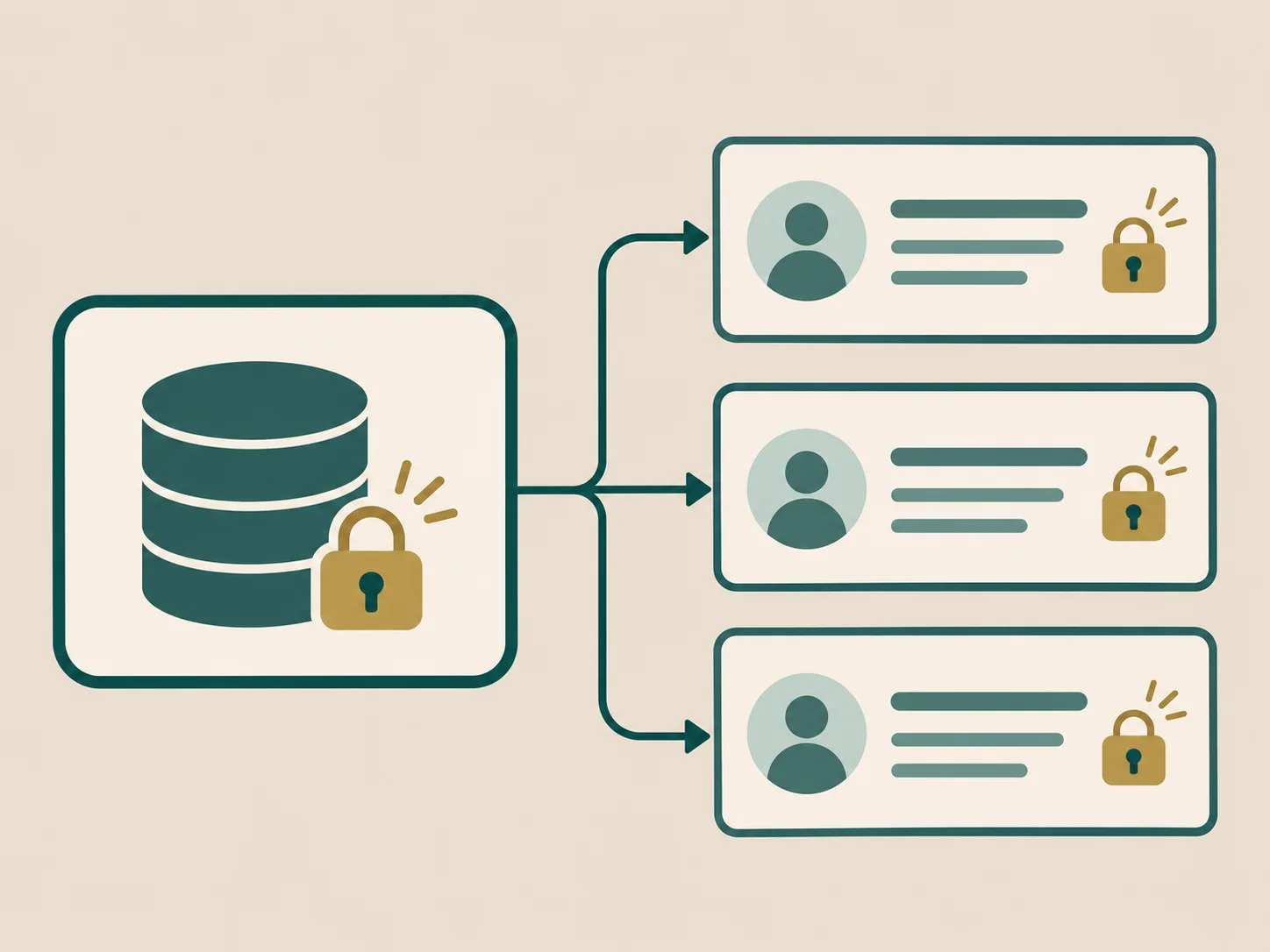
The last route differs from a database filter. A database view is one way to display records from a database. A filter changes the displayed list; page-level access controls which pages a person can open. Notion documents its database page-level access controls for Business and Enterprise plans. If your workspace does not have that feature, use separate client pages with permissions you can test.
For the two most common sharing routes, see the guide to sharing a Notion page with a client with or without an account. That guide covers public links and guest invitations. This one focuses on how those choices affect a portal with several clients.
Notion Client Portal Permissions Side by Side
Keep each client's work in a page structure whose sharing rules you can explain and verify. A small studio may choose a separate client portal page for each project, while a team with eligible database controls may choose a shared database and configure access per page.
| Setup | Good fit when | Main limit | Pre-share check |
|---|---|---|---|
| One private page tree per client | You want a straightforward boundary and can maintain each client's pages | More pages to update and organize | Confirm only the intended client is invited to that tree |
| One shared database with filtered views | Staff need one working list and clients do not access the underlying shared database | Filters do not isolate records from database access | Check the actual viewer's permissions, not just the filtered screen |
| One database with page-level access rules | You have a Business or Enterprise plan and want database records shared by rule | You must configure and verify the rules; feature availability depends on plan | Test a client account against its own and another client's records |
| Public page for read-only information | The information is safe for anyone with the URL to read | The link can be forwarded; it does not identify the intended client | Open the link signed out and inspect the full page tree |
The page layout alone cannot guarantee isolation. A parent page, workspace group or another share can also grant access. Check the permissions in the workspace after you build the layout.
A Filter Does Not Separate Client Records
A filtered view can make a database easier to use, but it should not be used on its own to hide one client's records from another. A database is a collection of pages with properties, and a view selects which pages to display by those properties. A person who has broader access to the database may be able to open records outside the filtered view.
Imagine a studio tracks project name, status and client in one database. The studio adds a view filtered to “Client A.” If Client A can open the database itself, the filter is not proof that Client B's record is inaccessible. Check the access controls on each database page. Notion's database page-level access rules can grant access based on person properties, but the feature is available on Business and Enterprise plans.
For a small studio without those controls, separate pages can be easier to reason about. Keep an internal master list in the studio's private area. Put only the intended client's information in that client's shared page tree. Link the studio record to the client view only when the linked page's access is appropriate. Avoid assuming that a linked view, a hidden property or a different tab creates a privacy boundary.
This structure adds a little maintenance. When a project ends, review access to its page and files. If a client should no longer see a page, remove their access and check whether another group or public link still grants access.
Guest Invitations Keep Access to Named People
Invite a client as a guest when you want to share selected pages with a named person. A guest is a person outside your workspace who receives an invitation to selected pages. In Notion, open the page's Share menu, enter the client's email, choose an access level and send the invitation. Notion says guests need their own account to access the page. Workspace settings and guest limits can also affect whether the invite succeeds. Its sharing and permissions guide lists the current access levels and explains how page sharing works.
Assign the lowest permission that supports the client's task. “Can view” lets the client read. “Can comment” supports feedback without page editing. Editing access allows more changes, and full access can include the ability to share the page onward. Use the permission label shown in your workspace, since available options can depend on the page type and settings.
Guests receive access to the pages you share with them; they do not automatically become members of the entire workspace. Permissions can also come from parent pages. A child page usually takes its parent's permissions unless you change them. A client invited to a parent may therefore have access to its subpages. Notion also says moving a shared parent page to the Private section removes others' access from that parent, while subpages keep their own permissions. Review Notion's sharing and permissions guidance across the whole tree before treating the top page as a boundary.
The Notion client portal template includes a separate portal structure for client work, with pages for tasks, workspace files, account access and feedback. Copying a page gives you a place to organize information. You remain responsible for inviting the right person and choosing their permissions.
Public Links Are Open to Anyone Who Gets Them
Use “Anyone on the web with link” only when every person who receives or is forwarded the URL may view the page. Notion says visitors can view public pages without an account, while a login is needed to comment or edit. A public link does not confirm that the visitor is your client. The Notion sharing guide also explains that people with broader workspace access can receive that broader access even if a page-level permission is narrower.
This can work for a generic brief, a public service guide or a read-only page with no client-specific details. It is a poor fit for confidential notes, account information or files that should remain with one named client. Turning off search indexing can limit search discovery, but it does not make the URL private. Anyone who gets the link may still open it.
Publishing a page as a Notion Site and enabling “Anyone on the web with link” are related public-sharing options with different settings. Notion's publishing guide says subpages are published by default with a site, and contributor names, photos or email addresses may appear in metadata for public pages. Check the current publishing settings and the page tree before you share.
What the Client Sees
The client should see only the pages needed for their work, at the access level you intended. Check this by opening the client's link in a private browser window or by using a test account with the same role.
For example, an illustrative six-client design studio can keep its internal project database private, then maintain one client-facing page tree per project. The studio shares the relevant tree with the named client as a guest. The client sees their own project summary, current files and next action. The studio checks that the parent page, children and linked material do not expose another client's information. This is an example of a setup to test, not a claim about Notion's automatic behavior.
Use this access review for each portal:
- Start from the exact page. Open the page you intend to share and review its Share menu.
- Check who already has access. Look for people, groups, teamspaces and any general access setting.
- Follow the page tree. Open subpages, linked databases and files. Check their access separately if needed.
- Test the client role. Open the link signed out for public access, or use a test guest for private access. Confirm what the client can view, comment on and edit.
- Review the result after changes. When you move a page, change a parent permission or remove a guest, test the relevant client view again.
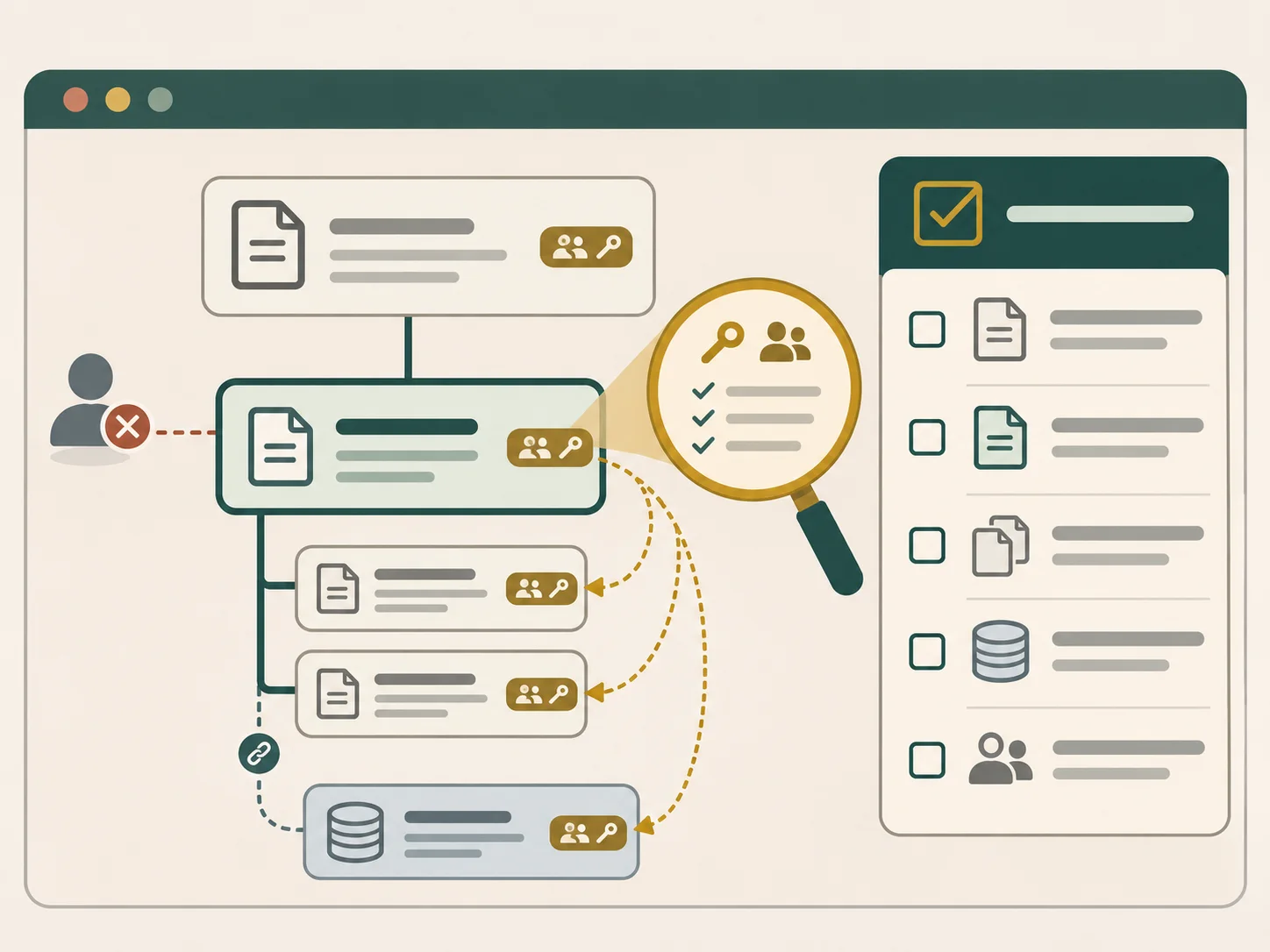
This review is especially useful after reorganizing a workspace. Moving a page or changing a parent permission can alter inherited access. Keep the test focused on the client's intended action. If the client only needs to read the status, check that they can find it and cannot edit it. If they need to leave feedback, confirm the route they will use and whether a Notion account is required.
For a broader list of what belongs in a client portal, use the client portal template checklist. Keep client details out of pages that are meant for general sharing.
Why Trust This Article
Notion Client Portal by Cosmo Suite makes the template discussed below. This guide describes Notion's published sharing, database-access and web-publishing documentation, checked on 10 November 2026. We have not tested these settings in your workspace. Notion may change its labels and plan availability, so confirm the current options in your account before sharing client information.
Read about the publisher and the site's editorial policy for more on how these articles are made and checked.
Where the Notion Client Portal Template Fits
Notion Client Portal gives a studio a Notion template for organizing its own dashboard and a portal structure for each project. The contents include client pages for an introduction, contract, payment, task, questionnaire, workspace, meeting, account access and feedback. It works with Notion's free plan, according to the contents list.
The template does not create private client logins, configure page permissions, or separate database records for you. Use Notion's sharing controls for that work. If you want a ready-made page structure, see the Notion Client Portal template. You can also use the Notion client portal guide to plan the page contents before you invite a client.
Frequently asked questions
Can one Notion database keep each client's page private from other clients?
A database view or filter is not a privacy boundary. Notion's page-level access controls can restrict database pages, but the feature is limited to Business and Enterprise plans. For client work, test the exact access rules or use separately shared pages.
Can clients view a Notion page without an account?
Anyone with a public web link can view the page without a Notion account. A named guest invitation requires the guest to have a Notion account. Public access is not private to the client who receives the link.
Can a Notion guest see the whole workspace?
Guests are invited to selected pages and do not automatically join the whole workspace. Access can still come through shared parent pages, subpages, or other sharing settings, so review the full page tree.
Does a filtered database view hide other client records?
A filter changes which records a view displays. It does not, by itself, prevent a viewer with access to the database from reaching other records. Use Notion's supported page-level access controls or separate the client pages and test access.
Does the Notion Client Portal template set permissions for me?
No. The template provides client and studio page layouts. You choose who can access each copied page, set its permission level, and check linked pages before sharing.
